AWS Auto Scaling Strategies: EC2, ECS, and Lambda
Quick summary: A practical guide to AWS auto scaling — target tracking, step scaling, scheduled scaling, predictive scaling, and the strategies that balance performance, availability, and cost across EC2, ECS, and Lambda workloads.
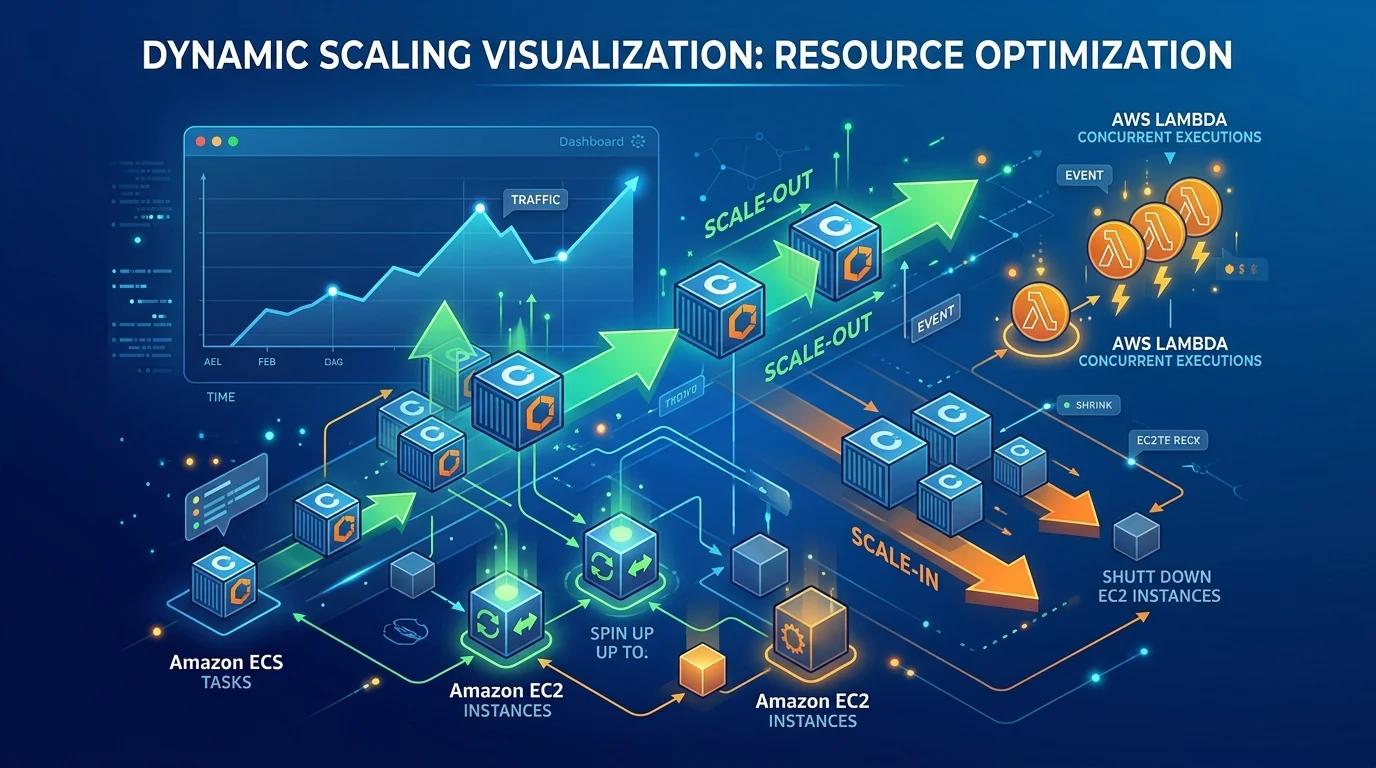
Table of Contents
Your application just went viral. Orders are flooding in — and you face two bad outcomes: idle servers bleeding your budget on a normal Tuesday, or users hitting error pages when traffic spikes thirty-fold on launch day. Neither is acceptable. Auto scaling eliminates both outcomes — your infrastructure expands to meet demand and contracts when it passes, so you pay for what you use and users never notice the surge.
But auto scaling is not magic. Poorly configured scaling policies cause oscillation (rapidly adding and removing capacity), slow response to traffic spikes, or scaling based on the wrong metric. This guide covers the scaling strategies for EC2, ECS, and Lambda that work in production.
Scaling Concepts
Scale Out vs Scale Up
Scale out (horizontal): Add more instances of the same size.
2 × m5.large → 4 × m5.large → 8 × m5.largeScale up (vertical): Replace instances with larger ones.
m5.large → m5.xlarge → m5.2xlargeAWS auto scaling is horizontal — it changes the number of instances, not their size. Vertical scaling requires stopping and replacing instances, which means downtime.
Recommendation: Design for horizontal scaling from the start. Stateless applications that can run on any number of identical instances scale horizontally without modification.
Key Metrics
The metric you scale on determines how well your scaling responds to actual demand:
| Metric | Measures | Best For |
|---|---|---|
| CPU utilization | Compute saturation | CPU-bound workloads |
| Memory utilization | Memory pressure | Memory-intensive applications |
| Request count per target | Traffic volume | Web applications, APIs |
| Queue depth | Pending work | Worker/consumer applications |
| Custom metric | Application-specific | Business-specific scaling |
EC2 Auto Scaling
Auto Scaling Groups (ASGs)
An ASG manages a group of EC2 instances with defined minimum, maximum, and desired capacity:
ASG Configuration:
  Min capacity: 2      (never fewer than 2 instances)
  Desired capacity: 4  (normal operating capacity)
  Max capacity: 20     (ceiling during peak traffic)
Always set min capacity ≥ 2 for production workloads. A minimum of 1 means a single instance failure takes down your application.
Target Tracking Scaling
The simplest and most effective scaling policy — specify a target metric value and ASG adjusts capacity to maintain it:
Target: CPUUtilization = 60%
  Current: 80% → ASG adds instances → CPU drops to 60%
  Current: 30% → ASG removes instances → CPU rises to 60%
Predefined target tracking metrics:
ASGAverageCPUUtilization— Average CPU across all instancesASGAverageNetworkIn/ASGAverageNetworkOut— Network throughputALBRequestCountPerTarget— Requests per instance (requires ALB)
Custom metric target tracking: Scale on any CloudWatch metric:
Scale on SQS queue depth per instance:
  Target: ApproximateNumberOfMessages / DesiredCapacity = 10
  → Each instance should process ~10 messages at a time
Recommended target values:
| Metric | Target | Rationale |
|---|---|---|
| CPU utilization | 50-70% | Headroom for traffic spikes |
| Request count per target | Based on load testing | Determined by instance capacity |
| Queue depth per instance | 5-20 | Based on processing time per message |
Step Scaling
Scale in steps based on alarm thresholds — provides more control than target tracking:
CPU < 30%  → Remove 2 instances
CPU 30-50% → Remove 1 instance
CPU 50-70% → No action (desired range)
CPU 70-85% → Add 2 instances
CPU > 85%  → Add 4 instances (aggressive scale-out for spikes)
When to use step scaling instead of target tracking:
- You need different scale-out and scale-in behavior
- You need aggressive scaling for extreme thresholds
- Target tracking oscillates due to spiky traffic patterns
Scheduled Scaling
Scale based on known traffic patterns:
Monday-Friday 8 AM: Set desired capacity to 10  (business hours)
Monday-Friday 6 PM: Set desired capacity to 4   (evening)
Saturday-Sunday:    Set desired capacity to 2    (weekend)
Best for: Predictable traffic patterns — business applications with clear working hours, e-commerce with known peak days, batch processing with scheduled jobs.
Combine with target tracking: Use scheduled scaling to set the baseline capacity and target tracking to handle variability within each period.
Predictive Scaling
ML-based scaling that analyzes historical traffic patterns and pre-provisions capacity before demand increases:
Historical pattern: Traffic spikes at 9 AM every weekday
Predictive scaling: Starts adding instances at 8:45 AM
→ Capacity is ready when traffic arrives (no scaling delay)
When to use:
- Traffic patterns are cyclical and predictable
- Scaling delay (2-5 minutes for EC2) causes problems during traffic ramps
- You have at least 24 hours of historical metric data
Predictive + target tracking: Predictive handles the expected pattern; target tracking handles unexpected deviations.
Warm Pools
Pre-initialize instances in a stopped or hibernated state for faster scale-out:
Normal ASG: Launch → Initialize (2-5 min) → InService
Warm pool:  Pre-initialized (stopped) → Start (30 sec) → InService
Cost: Stopped instances incur no compute charges (only EBS storage). Warm pools provide near-instant scaling without paying for idle running instances.
User experience impact: A cold EC2 launch takes 2–5 minutes — long enough for a traffic surge to degrade response times or trigger load balancer timeouts while new instances boot. Warm pools collapse that window to 30 seconds. Users absorb the surge invisibly; the only sign a scale event happened is a CloudWatch metric.
Best for: Applications with long initialization times (large applications, pre-loaded caches, JVM warmup).
Instance Refresh
Roll out new AMIs or launch template changes without manual intervention:
Instance Refresh:
  - Replace 20% of instances at a time
  - Wait for health check to pass before proceeding
  - Minimum 90% of instances healthy during refresh
  - Automatic rollback if health check failure rate exceeds threshold
This enables blue-green style deployments at the ASG level without a separate deployment service.
ECS Auto Scaling
Service Auto Scaling
ECS services scale the number of running tasks (containers):
ECS Service:
  Desired count: 4 tasks
  Min: 2 tasks
  Max: 20 tasks
  Scaling policy: Target tracking on CPU or ALB request count
Target tracking metrics for ECS:
ECSServiceAverageCPUUtilization— Average CPU across tasksECSServiceAverageMemoryUtilization— Average memory across tasksALBRequestCountPerTarget— Requests per task
ECS + EC2 Capacity Provider
When running ECS on EC2 (not Fargate), you need two scaling layers:
Layer 1: ECS Service Auto Scaling → Scales task count
Layer 2: EC2 ASG Capacity Provider → Scales EC2 instance count to fit tasks
Capacity provider managed scaling automatically adjusts the EC2 ASG to provide enough capacity for the desired number of ECS tasks. Set targetCapacity to 100% for minimal waste or 80% for headroom.
ECS on Fargate
Fargate eliminates the capacity provider layer — AWS manages the underlying compute:
ECS Service Auto Scaling → Scales task count → Fargate handles computeNo ASG to manage, no capacity provider to configure, no instance type selection. Fargate scaling is simpler but costs more per vCPU-hour than EC2.
Recommendation: Use Fargate for variable workloads where simplicity matters. Use EC2 with capacity providers for steady-state workloads where cost optimization is important.
Lambda Scaling
Lambda scales differently from EC2 and ECS — it scales per-invocation rather than per-instance.
Automatic Scaling
Lambda creates a new execution environment for each concurrent invocation:
10 concurrent requests → 10 Lambda execution environments
100 concurrent requests → 100 Lambda execution environments
1000 concurrent requests → 1000 Lambda execution environments
No scaling configuration needed. Lambda scales automatically from 0 to thousands of concurrent executions.
Concurrency Limits
| Limit | Default | Adjustable |
|---|---|---|
| Account concurrency (per Region) | 1,000 | Yes (request increase) |
| Burst concurrency | 500-3,000 (varies by Region) | No |
| Reserved concurrency (per function) | None (shares account pool) | Yes (0 to account limit) |
Reserved concurrency guarantees capacity for critical functions and prevents them from being throttled by other functions consuming the account pool:
Account limit: 1,000 concurrent
  Critical API function: 300 reserved
  Background processor: 200 reserved
  Remaining pool: 500 (shared by all other functions)
Provisioned Concurrency
Pre-initialize Lambda execution environments to eliminate cold starts:
Without provisioned concurrency:
  First request → Cold start (500ms-5s) → Process request

With provisioned concurrency (10 environments):
  Requests 1-10 → No cold start (pre-warmed) → Process request
  Request 11 → Cold start (if burst exceeds provisioned)
Auto Scaling Provisioned Concurrency:
Target tracking:
  Metric: ProvisionedConcurrencyUtilization
  Target: 70%
  Min provisioned: 5
  Max provisioned: 100
  Schedule: Higher during business hours, lower at night
This scales provisioned concurrency based on actual usage — warm environments ready during peak hours, minimal cost during off-hours.
Cost: Provisioned concurrency costs $0.000004646/GB-second (in addition to invocation charges). Only use for latency-sensitive functions where cold starts are unacceptable.
Scaling Best Practices
Cooldown Periods
After a scaling action, wait before evaluating again:
Scale-out cooldown: 60 seconds   (short — respond quickly to increasing demand)
Scale-in cooldown: 300 seconds   (long — avoid removing capacity prematurely)
Asymmetric cooldowns — Scale out quickly (short cooldown) but scale in slowly (long cooldown). Adding capacity too slowly degrades performance; removing capacity too quickly causes oscillation.
Health Checks
Scaling without health checks adds broken instances. Configure:
- ELB health checks (not just EC2 status checks) — Verify the application responds, not just that the instance is running
- Grace period — Allow new instances time to initialize before health checks evaluate them (120-300 seconds for most applications)
- Custom health checks — Application-level health endpoints that verify database connectivity, cache access, and dependency availability
Scaling Metrics Selection
| Workload Type | Primary Metric | Why |
|---|---|---|
| Web application | ALBRequestCountPerTarget | Directly measures user demand |
| CPU-bound processing | CPUUtilization | Processing capacity is the bottleneck |
| Memory-intensive | MemoryUtilization | Memory exhaustion causes failures |
| Queue consumer | ApproximateNumberOfMessages / DesiredCapacity | Queue depth measures pending work |
| Custom application | Custom CloudWatch metric | Application-specific demand indicator |
Avoid scaling on the wrong metric. Scaling a web application on CPU when it is I/O-bound (waiting for database queries) adds instances that also wait for the database — solving nothing. Scale on request count instead, and optimize the database separately.
Cost Optimization
Right-Sizing Before Scaling
Scaling 10 oversized instances is more expensive than scaling 10 right-sized instances. Right-size first, then configure scaling.
Spot Instances
Use Spot instances for fault-tolerant workloads:
ASG Mixed Instances Policy:
  On-Demand: 2 instances (baseline, always running)
  Spot: 0-18 instances (scaling capacity, 60-90% cheaper)
  Instance types: [m5.large, m5a.large, m5n.large, m6i.large]
Multiple instance types increase Spot availability. The on-demand baseline ensures minimum capacity even if all Spot instances are reclaimed.
Savings: Spot instances cost 60-90% less than on-demand. For auto-scaling capacity that handles traffic spikes, Spot provides significant cost reduction.
Scaling to Zero
For non-production environments, scale to zero during off-hours:
Scheduled scaling:
  Weekdays 8 AM: Desired = 2
  Weekdays 8 PM: Desired = 0
  Weekends: Desired = 0
Savings: Eliminating 16 hours/day + weekends = 76% compute cost reduction for development environments.
Monitoring
Set CloudWatch alarms for scaling health:
| Alarm | Condition | Indicates |
|---|---|---|
| Scaling activity frequency | > 10 scaling events/hour | Oscillation (flapping) |
| At max capacity | DesiredCapacity = MaxCapacity | Cannot scale further, may need higher max |
| At min capacity during peak | DesiredCapacity = MinCapacity during business hours | Possible scaling policy issue |
| Unhealthy instance count | > 0 for extended period | Instance or application health issue |
Common Mistakes
Mistake 1: Scaling on the Wrong Metric
Scaling a web application on CPU when the bottleneck is I/O, network, or a downstream dependency. The solution is not more instances — it is fixing the bottleneck. Identify the actual constraint before configuring scaling.
Mistake 2: No Scale-In Policy
Scaling out without scaling in leads to ever-growing infrastructure costs. Every scale-out policy should have a corresponding scale-in policy (target tracking handles this automatically).
Mistake 3: Max Capacity Too Low
Setting max capacity to 10 when your application legitimately needs 50 instances during peak. When max is reached, new requests are rejected or degraded. Set max capacity based on peak traffic analysis plus a safety margin.
Mistake 4: No Health Checks on Scaling
Adding instances that fail health checks but are counted as capacity. Configure ELB health checks with an appropriate grace period so only healthy instances serve traffic.
Getting Started
Auto scaling is the operational practice that aligns infrastructure cost with actual demand. Combined with cost monitoring, right-sizing, and Spot instances, it provides the cost-efficient, high-availability infrastructure that production workloads require.
When autoscaling creates costs instead of controlling them: For the failure patterns — feedback loops, thrashing, GPU cold-start amplification, and AI workload unpredictability — that turn autoscaling from a cost control tool into a cost driver, see Autoscaling Broke Your Budget (AI Made It Worse) from The AWS Cost Trap series.
As an AWS Select Tier Consulting Partner, FactualMinds has helped companies across industries stop paying for idle EC2 and stop getting caught flat-footed by traffic spikes. We design and implement warm pools, Spot mixed-instance policies, and health-check-aware deployment strategies tuned to your workload — not a generic template. Common entry points: scaling policies that oscillate instead of stabilize, ASGs hitting max capacity during peak events, and environments burning money on idle on-demand instances around the clock.
For scaling architecture design, performance optimization, and managed infrastructure services, book a free architecture review with our team.
AWS Cloud Architect & AI Expert
AWS-certified cloud architect and AI expert with deep expertise in cloud migrations, cost optimization, and generative AI on AWS.