How to Build a Safe Terraform Apply Workflow on AWS: Approval Gates, Plan Review, and Rollback
Quick summary: One bad `terraform apply` still deletes databases. July 2026: plan→review→apply, no -auto-approve, OIDC CI, Atlantis/HCP Terraform gates.
Key Takeaways
- July 2026: plan→review→apply, no -auto-approve, OIDC CI, Atlantis/HCP Terraform gates
- First-party benchmark (illustrative failure modes): rename-without- → RDS replace; wrong account profile → destroy in prod; typo opens
- Reproduce this: Plan-review-apply checklist The Cost of a Bad Apply Illustrative failure mode A: Refactor a resource name without / state mv → Terraform plans destroy+create on RDS
- Illustrative failure mode B: Local apply with the wrong AWS profile/account → resources change in prod while you intended staging
- The 3-Gate Model: Plan → Review → Apply A safe workflow has three gates: Gate 1: Plan (What Will Change
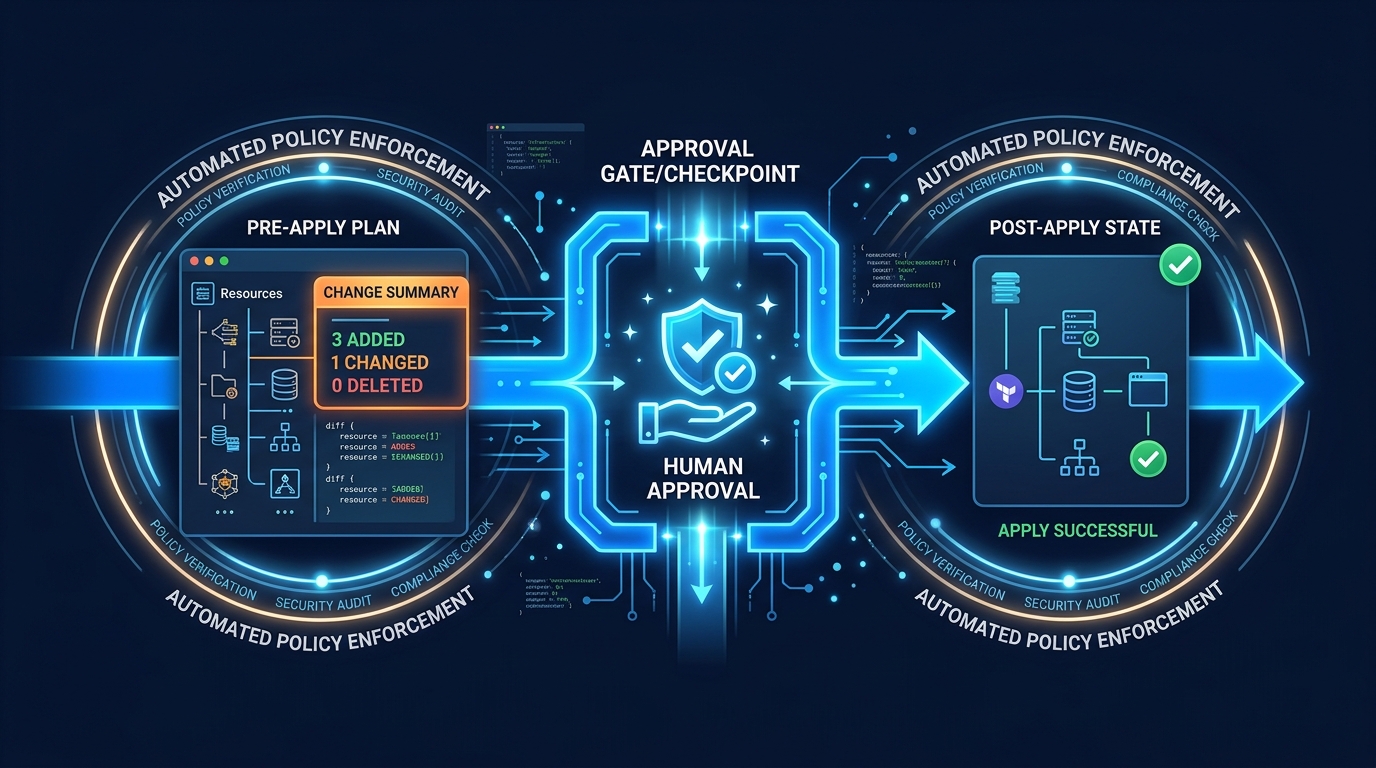
Table of Contents
Somewhere, right now, someone is tempted to run terraform apply -auto-approve in production. As of July 2026, the safe pattern is unchanged and non-negotiable: plan → human review → apply the signed plan artifact, with CI using OIDC to AWS (no long-lived keys) and a gate (Atlantis, HCP Terraform, Spacelift, env0, or equivalent).
First-party benchmark (illustrative failure modes): rename-without-moved → RDS replace; wrong account profile → destroy in prod; typo opens 0.0.0.0/0. Prevention is minutes of review; recovery is hours.
Reproduce this: Plan-review-apply checklist
The Cost of a Bad Apply
Illustrative failure mode A: Refactor a resource name without moved / state mv → Terraform plans destroy+create on RDS. Restore from backup can take hours.
Illustrative failure mode B: Local apply with the wrong AWS profile/account → resources change in prod while you intended staging.
Illustrative failure mode C: Variable typo opens a security group to the world — found next audit, not at apply time.
Prevention (review + block -auto-approve in prod) is minutes. Failure is hours and real money.
The 3-Gate Model: Plan → Review → Apply
A safe workflow has three gates:
Gate 1: Plan (What Will Change?)
terraform plan -out=tfplanOutput the plan to a file. Never rely on console-only output (which scrolls away and is hard to review).
The plan shows:
  # aws_db_instance.main will be destroyed
  - resource "aws_db_instance" "main" {

  # aws_security_group.app will be updated in-place
  ~ resource "aws_security_group" "app" {
        ~ ingress {
              + cidr_blocks = ["0.0.0.0/0"]
              from_port   = 443
              to_port     = 443
            }
        }
A reviewer should read this and say “yes, this is what I expected” or “wait, why is the database being destroyed?”
Plan safety tips:
- Always output to a file (plans are cryptographically signed; console output isn’t)
- Commit the plan to CI/CD so there’s an audit trail
- If the plan is larger than 100 lines, display it in a tool that’s designed for reading (not a text scroll)
Gate 2: Review (Is This Actually Safe?)
A human reads the plan. Not the person who wrote the code, but someone else. Ideally someone senior.
A reviewer should ask:
- “Are any critical resources being destroyed?” (databases, load balancers, security groups)
- “Are any IAM permissions being changed?” (could break applications)
- “Are any resource replacements happening?” (which means downtime)
- “Does this match the ticket/PR description?”
The review happens before apply. The review blocks apply if something looks wrong.
Gate 3: Apply (Make It Happen)
Only after review approval does the apply happen. And it should happen:
- In CI/CD, not on a developer’s laptop
- With audit logging (who applied it, when, what changed)
- With the exact plan that was reviewed (not a fresh plan that could be different)
Terraform supports this with terraform apply tfplan. The plan file is cryptographically signed, so if someone tampered with it, apply will fail.
What to Audit in a Terraform Plan
Not everything in a plan is dangerous, but some things are red flags.
Red Flag 1: Resource Destruction
# aws_rds_db_instance.main will be DESTROYEDDatabases should never be destroyed by accident. If you see a database destruction, pause and understand why:
- Is it a resource rename? (In which case, use
terraform state mv) - Is it a legitimate decommissioning? (In which case, require extra approvals)
- Is it a mistake in the code change? (Fix and re-plan)
Red Flag 2: Resource Replacement
  # aws_db_instance.main will be destroyed and recreated
  - will be destroyed
  + will be created
This is dangerous because it means downtime (the resource is gone during the recreation). For databases, it means data loss (usually).
Red Flag 3: Large Security Group Changes
  ~ resource "aws_security_group" "app" {
        ~ ingress {
              + cidr_blocks = ["0.0.0.0/0"]
            }
        }
Opening access to 0.0.0.0/0 (the entire internet) should be questioned. Is this intentional?
Red Flag 4: IAM Policy Changes
  ~ resource "aws_iam_role_policy" "app_role" {
        + "s3:*"
        - "s3:GetObject"
        - "s3:PutObject"
    }
Adding broad permissions (like s3:* instead of specific actions) is a security issue.
Red Flag 5: Encryption or Backup Settings Disabled
  ~ resource "aws_rds_db_instance" "main" {
        ~ storage_encrypted = true -> false
        ~ backup_retention_period = 30 -> 0
    }
Disabling encryption or backups is almost never intentional. Question this.
Green Flag: Additive Changes Only
  + resource "aws_s3_bucket" "backup" { ... }
  + resource "aws_iam_role" "service" { ... }
Creating new resources with no changes to existing ones is low risk. These plans can be approved quickly.
Blocking Dangerous Commands in CI/CD
Some commands should never run in production. Set up guards:
Block -auto-approve in Production
The -auto-approve flag skips the approval step entirely. It should only exist in dev.
In your CI/CD pipeline:
if [[ "$ENVIRONMENT" == "production" ]] && [[ "$TERRAFORM_ARGS" == *"-auto-approve"* ]]; then
  echo "❌ -auto-approve is forbidden in production"
  exit 1
fi
Block terraform destroy in Production
if [[ "$ENVIRONMENT" == "production" ]] && [[ "$COMMAND" == "destroy" ]]; then
  echo "❌ terraform destroy is forbidden in production. Use drift detection instead."
  exit 1
fi
If you need to destroy resources in production, require a separate approval process or don’t allow it through normal CI/CD.
Block -parallelism=1000 in Production
Terraform’s -parallelism flag controls how many resources change simultaneously. High parallelism can cause issues:
if [[ "$ENVIRONMENT" == "production" ]]; then
  terraform apply -parallelism=5 tfplan
else
  terraform apply -parallelism=10 tfplan
fi
Limiting parallelism means changes happen more slowly, giving you time to notice problems.
Per-Environment Policies: Auto-Approve for Dev, Manual Gate for Prod
Different environments have different risk profiles.
| Environment | Approval Required | Auto-Approve OK | Parallelism | Policy |
|---|---|---|---|---|
| Dev | No | Yes | 10+ | Speed matters; we accept risk |
| Staging | Maybe | No | 5 | Simulate production, but still safe to experiment |
| Production | Always | No | 3-5 | Every change is reviewed; destructive ops are blocked |
Example CI/CD configuration:
# .github/workflows/terraform.yml

on: [push, pull_request]

env:
  TF_VAR_environment: ${{ github.ref == 'refs/heads/main' && 'production' || 'staging' }}

jobs:
  terraform:
    runs-on: ubuntu-latest
    steps:
      - uses: actions/checkout@v3
      - uses: hashicorp/setup-terraform@v2

      - name: Terraform Plan
        run: |
          terraform init
          terraform plan -out=tfplan

      - name: Require Approval (Production Only)
        if: env.TF_VAR_environment == 'production'
        uses: actions/github-script@v6
        with:
          script: |
            github.rest.pulls.requestReviewers({
              owner: context.repo.owner,
              repo: context.repo.repo,
              pull_number: context.issue.number,
              reviewers: ['senior-infra-engineer']
            })

      - name: Wait for Approval (Production Only)
        if: env.TF_VAR_environment == 'production'
        run: |
          # Block until PR is approved
          # (Implementation depends on your approval strategy)

      - name: Terraform Apply (Auto for Dev, Conditional for Prod)
        run: |
          if [[ "$ENVIRONMENT" == "production" ]]; then
            terraform apply tfplan  # Requires prior approval
          else
            terraform apply -auto-approve tfplan
          fi
        env:
          ENVIRONMENT: ${{ env.TF_VAR_environment }}
AWS-Specific Risks and How to Mitigate Them
Some Terraform operations are particularly risky on AWS.
Risk 1: RDS Resource Replacement
RDS instances can’t be replaced (updated in place) for certain changes:
resource "aws_db_instance" "main" {
  allocated_storage = 100  # Changed from 50
  skip_final_snapshot = false  # Safe
  apply_immediately = true  # Dangerous! Causes immediate downtime
}
If apply_immediately = true, the change happens now, not during your maintenance window. Your database is unavailable.
Mitigation: Review RDS changes extra carefully. Use apply_immediately = false in production.
Risk 2: ElastiCache Node Replacement
Changing node types in ElastiCache causes the cache to be recreated, flushing all cached data.
resource "aws_elasticache_cluster" "main" {
  node_type = "cache.t3.micro"  # Changed from cache.t3.small
}
This is a cache replacement. Plan for cache misses and increased load on your database.
Risk 3: Security Group Rule Changes During Active Traffic
Removing a security group rule during active traffic can drop connections mid-stream.
resource "aws_security_group_rule" "app_ingress" {
  type              = "ingress"
  from_port         = 443
  to_port           = 443
  protocol          = "tcp"
  cidr_blocks       = ["10.0.0.0/8"]  # Removing this rule breaks connections
}
Mitigation: Make security group changes during maintenance windows, or apply them gradually (update code, apply change, verify, then roll forward).
Rollback Options When Apply Goes Wrong
If terraform apply causes problems, you have options.
Option 1: Terraform State Rollback
If the plan that was applied was bad, you can use terraform state push to revert to the previous state:
# Save current state
terraform state pull > current-state.json

# Restore previous state (from backup)
terraform state push previous-state.json

# Re-plan (should show how to recreate the destroyed resources)
terraform plan
This is a last resort. It’s not clean. But it works when you need to undo a disaster quickly.
Option 2: Destroy and Rebuild
For some resources, it’s faster to destroy and recreate:
terraform destroy -target=aws_instance.web
terraform apply -target=aws_instance.web
This removes the corrupted resource and rebuilds it cleanly.
Option 3: Manual AWS Console Changes
If Terraform is causing problems, make changes directly in the AWS console to stabilize, then fix Terraform code and re-apply:
- Manually fix the problem in AWS console
- Update Terraform code to match
- Run
terraform importif necessary to bring it under Terraform management - Run
terraform planto verify zero changes
Tools for Safe Workflow Automation
Several tools specialize in safe Terraform workflows.
Atlantis
Atlantis is a self-hosted tool that runs terraform plan on pull requests and manages terraform apply approvals.
Workflow:
- Developer opens PR with infrastructure changes
- Atlantis runs
terraform planand posts the plan in the PR - Reviewers comment
atlantis applyto approve - Atlantis runs
terraform applywith full audit logging
Benefits:
- Plan output is visible in the PR
- No developer access needed to run apply
- Full audit trail of who approved what
Spacelift
Spacelift (or HCP Terraform, formerly Terraform Cloud) adds approval workflows, policy enforcement, and drift detection.
Features:
- Require approval before apply
- Block dangerous operations (destroy, auto-approve)
- Policy as Code (enforce naming conventions, required tags, etc.)
- Drift detection and remediation
GitHub Actions with Required Approvals
If you’re using GitHub, you can use GitHub’s built-in approval mechanisms:
- name: Create Approval Issue
  if: github.event_name == 'pull_request'
  uses: actions/github-script@v6
  with:
    script: |
      github.rest.issues.create({
        owner: context.repo.owner,
        repo: context.repo.repo,
        title: 'Approval Required: Infrastructure Changes',
        body: 'This PR modifies production infrastructure. Requires approval from @senior-infra-engineer'
      })
Testing Your Safe Workflow
Before deploying to production, test your approval workflow in staging:
- Create a change in staging that would be dangerous (like increasing instance size)
- Verify the plan is created correctly
- Verify the approval requirement blocks apply
- Verify approval enables apply
- Verify the change applies correctly
If this process works in staging, you can trust it in production.
What this post doesn’t cover
OpenTofu-specific CI plugins and full Sentinel/OPA policy libraries — same gates apply; tool names differ.
What to do Monday morning
- Ban
-auto-approveon prod; requireterraform apply tfplanafter review. - Move CI credentials to OIDC → short-lived AWS roles.
- Put Atlantis or HCP Terraform/Spacelift in front of prod applies.
- Walk the apply-gates checklist.
- Next: state import/move · drift detection · Control Tower.
- Contact for a Terraform governance pass.

AWS Cloud Architect & AI Expert
AWS-certified cloud architect and AI expert with deep expertise in cloud migrations, cost optimization, and generative AI on AWS.