How to Migrate a Monolith to ECS Fargate Without Downtime
Quick summary: Monolith → Fargate without a big-bang cutover: containerize, ALB weights 10→50→100, keep blue 2–4 weeks. July 2026 cutover checklist.
Key Takeaways
- Monolith → Fargate without a big-bang cutover: containerize, ALB weights 10→50→100, keep blue 2–4 weeks
- July 2026 cutover checklist
- Migrating a monolith to ECS Fargate unlocks scaling and deploy flexibility — if you avoid a single weighted-listener flip
- As of July 2026, the durable pattern is still: containerize → green Fargate beside blue legacy → ALB weight shift (10% → 50% → 100%) → keep blue 2–4 weeks
- First-party benchmark (illustrative): planning + staging often 3–5 weeks; production traffic shift windows are hours, but rollback insurance is weeks of parallel blue — not “one quiet evening
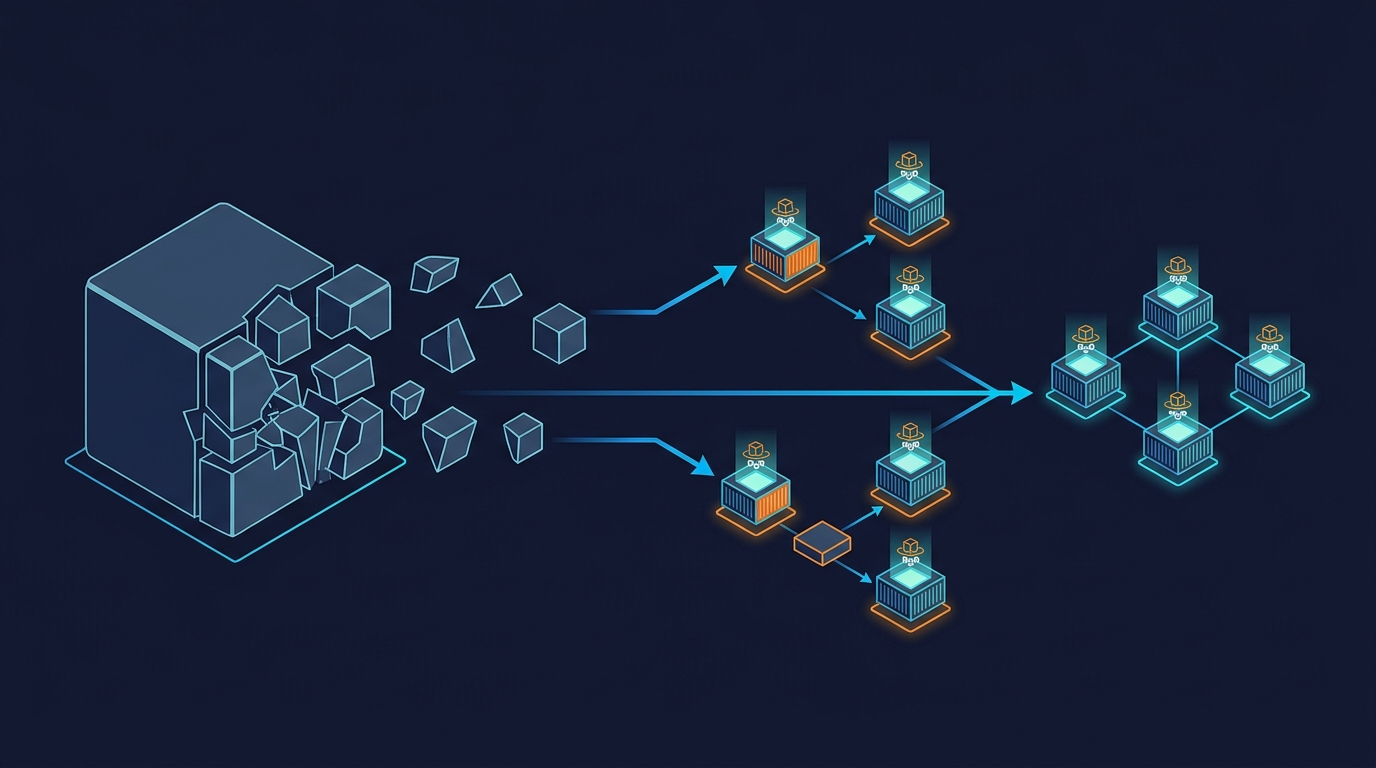
Table of Contents
Migrating a monolith to ECS Fargate unlocks scaling and deploy flexibility — if you avoid a single weighted-listener flip. As of July 2026, the durable pattern is still: containerize → green Fargate beside blue legacy → ALB weight shift (10% → 50% → 100%) → keep blue 2–4 weeks. Decouple DB migration from the first cutover when you can.
First-party benchmark (illustrative): planning + staging often 3–5 weeks; production traffic shift windows are hours, but rollback insurance is weeks of parallel blue — not “one quiet evening.”
Reproduce this: Zero-downtime cutover checklist
Migrating to AWS? Migration services · contact.
Step 1: Understand the Migration Architecture
Zero-downtime migration uses a blue-green deployment pattern:
Users
  ↓
Load Balancer (ALB)
  ├─→ Blue (old monolith) — 100% traffic
  └─→ Green (new Fargate) — 0% traffic
       ↓
       (after validation)
  ├─→ Blue (old monolith) — 10% traffic
  └─→ Green (new Fargate) — 90% traffic
       ↓
       (after monitoring)
  ├─→ Blue (old monolith) — 0% traffic (stop)
  └─→ Green (new Fargate) — 100% traffic
Key components:
- Application Load Balancer (ALB): Routes traffic between versions
- Target Groups: Blue (old) and Green (new) app versions
- Listener Rules: Gradually shift traffic
- Health Checks: Validate Green before accepting traffic
- Monitoring: Catch issues in real-time
- Rollback Plan: Shift back to Blue if Green fails
Step 2: Containerize Your Monolith
Create a Dockerfile for your application:
Example: Node.js Monolith
FROM node:20-alpine

WORKDIR /app

COPY package.json package-lock.json ./
RUN npm ci --only=production

COPY . .

EXPOSE 8080

HEALTHCHECK --interval=10s --timeout=3s --start-period=30s --retries=3 \
    CMD node -e "require('http').get('http://localhost:8080/health', (r) => {if (r.statusCode !== 200) throw new Error(r.statusCode)})"

CMD ["node", "server.js"]
Example: Python Django/Flask Monolith
FROM python:3.11-slim

WORKDIR /app

COPY requirements.txt .
RUN pip install -r requirements.txt

COPY . .

EXPOSE 8080

HEALTHCHECK --interval=10s --timeout=3s --start-period=30s --retries=3 \
    CMD python -c "import urllib.request; urllib.request.urlopen('http://localhost:8080/health').read()"

CMD ["gunicorn", "--bind", "0.0.0.0:8080", "--workers", "4", "app:app"]
Example: PHP/Laravel Monolith
FROM php:8.2-fpm-alpine

WORKDIR /app

COPY composer.json composer.lock ./
RUN composer install --no-dev

COPY . .

EXPOSE 8080

HEALTHCHECK --interval=10s --timeout=3s --start-period=30s --retries=3 \
    CMD wget --quiet --tries=1 --spider http://localhost:8080/health || exit 1

CMD ["php", "-S", "0.0.0.0:8080"]
Key points:
- Expose port 8080 (or your app’s port)
- Include a HEALTHCHECK endpoint (e.g.,
/health) - Use
node -e,python -c, orwgetfor health checks - Set
--start-periodto app startup time (30s for slow apps)
Build and push to ECR:
aws ecr create-repository --repository-name my-monolith --region us-east-1

docker build -t my-monolith:latest .

aws ecr get-login-password --region us-east-1 | docker login --username AWS --password-stdin 123456789012.dkr.ecr.us-east-1.amazonaws.com

docker tag my-monolith:latest 123456789012.dkr.ecr.us-east-1.amazonaws.com/my-monolith:latest

docker push 123456789012.dkr.ecr.us-east-1.amazonaws.com/my-monolith:latest
Step 3: Create ALB and Target Groups
Set up the load balancer:
# Create ALB
aws elbv2 create-load-balancer \
  --name my-monolith-alb \
  --subnets subnet-1 subnet-2 \
  --security-groups sg-alb \
  --scheme internet-facing \
  --type application

# Get ALB ARN
ALB_ARN="arn:aws:elasticloadbalancing:us-east-1:123456789012:loadbalancer/app/my-monolith-alb/50dc6c495c0c9188"

# Create Blue target group (old monolith on EC2 or on-prem)
aws elbv2 create-target-group \
  --name blue-tg \
  --protocol HTTP \
  --port 8080 \
  --vpc-id vpc-12345 \
  --health-check-protocol HTTP \
  --health-check-path /health \
  --health-check-interval-seconds 10 \
  --health-check-timeout-seconds 3 \
  --healthy-threshold-count 2 \
  --unhealthy-threshold-count 3

# Create Green target group (new Fargate)
aws elbv2 create-target-group \
  --name green-tg \
  --protocol HTTP \
  --port 8080 \
  --vpc-id vpc-12345 \
  --target-type ip \
  --health-check-protocol HTTP \
  --health-check-path /health \
  --health-check-interval-seconds 10 \
  --health-check-timeout-seconds 3 \
  --healthy-threshold-count 2 \
  --unhealthy-threshold-count 3

# Create listener (initially all traffic to Blue)
aws elbv2 create-listener \
  --load-balancer-arn $ALB_ARN \
  --protocol HTTP \
  --port 80 \
  --default-actions Type=forward,TargetGroupArn=arn:aws:elasticloadbalancing:us-east-1:123456789012:targetgroup/blue-tg/50dc6c495c0c9188
Step 4: Register Blue Targets (Old Monolith)
Register existing instances to the Blue target group:
# For EC2 instances
aws elbv2 register-targets \
  --target-group-arn arn:aws:elasticloadbalancing:us-east-1:123456789012:targetgroup/blue-tg/50dc6c495c0c9188 \
  --targets Id=i-1234567890abcdef0 Id=i-0987654321fedcba0

# For on-premises servers, register by IP
aws elbv2 register-targets \
  --target-group-arn arn:aws:elasticloadbalancing:us-east-1:123456789012:targetgroup/blue-tg/50dc6c495c0c9188 \
  --targets Id=10.0.1.100 Port=8080
Verify Blue targets are healthy:
aws elbv2 describe-target-health \
  --target-group-arn arn:aws:elasticloadbalancing:us-east-1:123456789012:targetgroup/blue-tg/50dc6c495c0c9188
Step 5: Create ECS Cluster and Deploy to Fargate
Create ECS cluster:
aws ecs create-cluster --cluster-name my-monolith-cluster --region us-east-1

# Create CloudWatch log group
aws logs create-log-group --log-group-name /ecs/my-monolith
Create task definition:
cat > task-definition.json <<EOF
{
  "family": "my-monolith",
  "networkMode": "awsvpc",
  "requiresCompatibilities": ["FARGATE"],
  "cpu": "512",
  "memory": "1024",
  "executionRoleArn": "arn:aws:iam::123456789012:role/ecsTaskExecutionRole",
  "containerDefinitions": [
    {
      "name": "my-monolith",
      "image": "123456789012.dkr.ecr.us-east-1.amazonaws.com/my-monolith:latest",
      "portMappings": [
        {
          "containerPort": 8080,
          "hostPort": 8080,
          "protocol": "tcp"
        }
      ],
      "logConfiguration": {
        "logDriver": "awslogs",
        "options": {
          "awslogs-group": "/ecs/my-monolith",
          "awslogs-region": "us-east-1",
          "awslogs-stream-prefix": "ecs"
        }
      },
      "healthCheck": {
        "command": ["CMD-SHELL", "curl -f http://localhost:8080/health || exit 1"],
        "interval": 30,
        "timeout": 5,
        "retries": 3,
        "startPeriod": 60
      }
    }
  ]
}
EOF

aws ecs register-task-definition --cli-input-json file://task-definition.json
Create ECS service (Green):
aws ecs create-service \
  --cluster my-monolith-cluster \
  --service-name my-monolith-service \
  --task-definition my-monolith:1 \
  --desired-count 3 \
  --launch-type FARGATE \
  --network-configuration "awsvpcConfiguration={subnets=[subnet-1,subnet-2],securityGroups=[sg-app],assignPublicIp=DISABLED}" \
  --load-balancers targetGroupArn=arn:aws:elasticloadbalancing:us-east-1:123456789012:targetgroup/green-tg/xxxxx,containerName=my-monolith,containerPort=8080 \
  --deployment-configuration "maximumPercent=150,minimumHealthyPercent=50" \
  --enable-ecs-managed-tags
Wait for Green targets to be healthy:
aws elbv2 describe-target-health \
  --target-group-arn arn:aws:elasticloadbalancing:us-east-1:123456789012:targetgroup/green-tg/xxxxx
Step 6: Test Green Deployment
Before shifting traffic, validate Green in staging:
# Get ALB DNS name
ALB_DNS=$(aws elbv2 describe-load-balancers \
  --load-balancer-arns $ALB_ARN \
  --query 'LoadBalancers[0].DNSName' \
  --output text)

# Test Blue (currently serving all traffic)
curl http://$ALB_DNS/api/status

# Create a temporary listener to test Green directly
aws elbv2 create-listener \
  --load-balancer-arn $ALB_ARN \
  --protocol HTTP \
  --port 8081 \
  --default-actions Type=forward,TargetGroupArn=arn:aws:elasticloadbalancing:us-east-1:123456789012:targetgroup/green-tg/xxxxx

# Test Green on port 8081
curl http://$ALB_DNS:8081/api/status

# Remove temporary listener
aws elbv2 delete-listener --listener-arn arn:aws:elasticloadbalancing:us-east-1:123456789012:listener/app/my-monolith-alb/50dc6c495c0c9188/f2f7dc8efc022ab2
Run smoke tests against Green to validate:
- Database connectivity
- Cache/Redis access
- External API calls
- Critical user flows
Step 7: Shift Traffic Gradually (Blue-Green Deployment)
Shift traffic in stages to catch issues early:
Stage 1: 10% to Green
# Update listener to 10% Green, 90% Blue using weighted target groups
aws elbv2 create-rule \
  --listener-arn arn:aws:elasticloadbalancing:us-east-1:123456789012:listener/app/my-monolith-alb/50dc6c495c0c9188/f2f7dc8efc022ab2 \
  --priority 1 \
  --conditions Field=path-pattern,Values='/*' \
  --actions Type=forward,ForwardConfig="{TargetGroups:[{TargetGroupArn=arn:aws:elasticloadbalancing:us-east-1:123456789012:targetgroup/blue-tg/xxxxx,Weight=90},{TargetGroupArn=arn:aws:elasticloadbalancing:us-east-1:123456789012:targetgroup/green-tg/xxxxx,Weight=10}]}"
Monitor for 30-60 minutes:
- Check Fargate logs:
aws logs tail /ecs/my-monolith --follow - Monitor errors in APM (Datadog, New Relic)
- Check database performance
- Verify no customer complaints
Stage 2: 50% to Green
# Update rule to 50-50
aws elbv2 modify-rule \
  --rule-arn arn:aws:elasticloadbalancing:us-east-1:123456789012:rule/app/my-monolith-alb/50dc6c495c0c9188/f2f7dc8efc022ab2 \
  --actions Type=forward,ForwardConfig="{TargetGroups:[{TargetGroupArn=arn:aws:elasticloadbalancing:us-east-1:123456789012:targetgroup/blue-tg/xxxxx,Weight=50},{TargetGroupArn=arn:aws:elasticloadbalancing:us-east-1:123456789012:targetgroup/green-tg/xxxxx,Weight=50}]}"
Monitor again for 30-60 minutes.
Stage 3: 100% to Green
# Update listener to 100% Green
aws elbv2 modify-rule \
  --rule-arn arn:aws:elasticloadbalancing:us-east-1:123456789012:rule/app/my-monolith-alb/50dc6c495c0c9188/f2f7dc8efc022ab2 \
  --actions Type=forward,TargetGroupArn=arn:aws:elasticloadbalancing:us-east-1:123456789012:targetgroup/green-tg/xxxxx
Keep Blue running as a rollback safety net for 2-4 weeks.
Step 8: Monitor and Validate
Set up CloudWatch dashboards and alarms:
aws cloudwatch put-metric-alarm \
  --alarm-name "Fargate-High-CPU" \
  --alarm-description "Alert if Fargate CPU > 80%" \
  --metric-name CPUUtilization \
  --namespace AWS/ECS \
  --statistic Average \
  --period 300 \
  --threshold 80 \
  --comparison-operator GreaterThanThreshold \
  --alarm-actions arn:aws:sns:us-east-1:123456789012:ops-team

aws cloudwatch put-metric-alarm \
  --alarm-name "Green-TG-Unhealthy" \
  --alarm-description "Alert if Green targets become unhealthy" \
  --metric-name UnHealthyHostCount \
  --namespace AWS/ApplicationELB \
  --statistic Sum \
  --period 60 \
  --threshold 1 \
  --comparison-operator GreaterThanOrEqualToThreshold \
  --alarm-actions arn:aws:sns:us-east-1:123456789012:ops-team
Step 9: Rollback Strategy
If Green fails, immediately shift traffic back to Blue:
# Shift back to 100% Blue
aws elbv2 modify-rule \
  --rule-arn arn:aws:elasticloadbalancing:us-east-1:123456789012:rule/app/my-monolith-alb/50dc6c495c0c9188/f2f7dc8efc022ab2 \
  --actions Type=forward,TargetGroupArn=arn:aws:elasticloadbalancing:us-east-1:123456789012:targetgroup/blue-tg/xxxxx
Rollback time: 30 seconds. Most customers won’t notice.
Fix the issue in Fargate, then restart the migration:
- Review Fargate logs to identify the error
- Fix the code or configuration
- Deploy new image
- Restart traffic shifting (10% → 50% → 100%)
Production Patterns
Pattern 1: Canary Deployments
Instead of discrete 10%/50%/100%, use a continuous canary:
# Route 5% of traffic to Green every 5 minutes
for i in {1..20}; do
  WEIGHT=$((i * 5))
  echo "Shifting $WEIGHT% to Green"
  aws elbv2 modify-rule \
    --rule-arn $RULE_ARN \
    --actions Type=forward,ForwardConfig="{TargetGroups:[{TargetGroupArn=$BLUE_TG,Weight=$((100-WEIGHT))},{TargetGroupArn=$GREEN_TG,Weight=$WEIGHT}]}"
  sleep 300  # Wait 5 minutes
done
Pattern 2: Automated Rollback
Set up automatic rollback if error rate spikes:
import boto3
import time

cloudwatch = boto3.client('cloudwatch')
elbv2 = boto3.client('elbv2')

def check_error_rate(metric_name, threshold=5):
    """Check if error rate exceeds threshold (%)"""
    response = cloudwatch.get_metric_statistics(
        Namespace='AWS/ApplicationELB',
        MetricName='HTTPCode_Target_5XX_Count',
        Dimensions=[{'Name': 'TargetGroup', 'Value': 'green-tg'}],
        StartTime=time.time() - 300,
        EndTime=time.time(),
        Period=60,
        Statistics=['Sum']
    )

    total_5xx = sum([dp['Sum'] for dp in response['Datapoints']])
    total_requests = cloudwatch.get_metric_statistics(...)  # Get total requests
    error_rate = (total_5xx / total_requests) * 100 if total_requests else 0

    return error_rate > threshold

if check_error_rate(threshold=5):
    print("ERROR RATE > 5%, ROLLING BACK")
    elbv2.modify_rule(...)  # Shift back to Blue
Common Mistakes to Avoid
No health checks
- Fargate starts tasks but App Crashes silently
- Always add
/healthendpoint and configure health checks
Shifting traffic too fast
- Shift 100% in one go, issues become customer-facing
- Do it gradually: 10% → 50% → 100% over hours
No monitoring
- Don’t watch metrics while shifting
- Set up Datadog, New Relic, or CloudWatch dashboards
Stopping Blue too soon
- Stopped Blue after 1 hour, Green has a bug, can’t rollback
- Keep Blue running for 2-4 weeks minimum
Misconfigured security groups
- Fargate security group blocks database access
- Verify egress rules allow database/cache connections
Migration Checklist
- Dockerfile created and tested locally
- Image pushed to ECR
- ALB created with Blue and Green target groups
- Blue targets registered and healthy
- ECS cluster and task definition created
- Fargate service deployed, Green targets healthy
- Smoke tests pass against Green
- Monitoring dashboard created
- Rollback procedure documented
- On-call team trained on rollback
- Stage 1 (10%): Shift traffic, monitor 1 hour
- Stage 2 (50%): Shift traffic, monitor 1 hour
- Stage 3 (100%): Shift traffic, monitor 2-4 weeks
- Shutdown Blue after 4 weeks
What this post doesn’t cover
Strangler-fig service extraction and EKS — containerize the monolith first; split later if needed. Pair with ECS blue/green once green is the only path.
What to do Monday morning
- Scale in place first — monolith scaling ladder before a rewrite.
- Walk the cutover checklist.
- Containerize your monolith (1–2 days); set up ALB blue/green target groups.
- Deploy Fargate green in staging; smoke-test; then weight-shift prod 10% → 50% → 100%.
- Keep blue 2–4 weeks; only then decommission.
- Talk to FactualMinds for large cutovers or later strangler extraction.
Frequently asked questions
What is the difference between ECS EC2 and ECS Fargate?
Both use ECS (Elastic Container Service) but different compute models: (1) ECS EC2: You manage EC2 instances (patching, scaling, capacity planning), cheaper for always-on workloads, (2) ECS Fargate: AWS manages servers, you pay per task, better for variable workloads. For migrating from on-prem, Fargate is easier (no server management). For steady-state workloads, EC2 is cheaper. Most startups choose Fargate first for simplicity.
How long does a zero-downtime migration take?
Planning + preparation: 2-3 weeks. Testing in staging: 1-2 weeks. Production migration: 1-3 hours (if you shift traffic gradually). If you rush, it's risky. If you migrate all traffic at once, expect 30 mins–1 hour downtime if something breaks. With gradual shifting (10% → 50% → 100%), you can catch issues before full cutover. Rollback time: 5-10 mins if you keep the old system running in parallel.
What should I do with the old monolith after migration?
Three options: (1) Keep running in parallel for 2-4 weeks as a rollback safety net, (2) Run in read-only mode (stops writes, serves reads) for gradual draindown, (3) Shut down immediately (risky). Recommended: Option 1. If something breaks in Fargate, you can shift traffic back in minutes. Keep the old system running until you're confident (usually 2-4 weeks). Cost: just EC2 instance fees; relatively cheap insurance.
How do I handle database migrations during containerization?
Two strategies: (1) Lift-and-shift (same DB, Fargate just runs the app) — easiest, move later if needed. (2) Migrate to RDS/managed database simultaneously — more complex, but sets you up for scaling. For zero-downtime, use strategy 1 first: containerize app, keep using same database. Later, migrate to RDS without changing app code (just connection string). This decouples database migration from containerization.
What happens if a Fargate task crashes?
ECS automatically restarts it (after 30-second cooldown). If it keeps crashing, ECS eventually gives up and the service scales down. Health checks catch failures: if health check fails 3 times in a row, ECS replaces the task. Configure health checks properly: `curl http://localhost:8080/health` every 5 seconds, timeout 2 seconds. If your app takes >5 seconds to start, increase the grace period.
AWS Cloud Architect & AI Expert
AWS-certified cloud architect and AI expert with deep expertise in cloud migrations, cost optimization, and generative AI on AWS.